Jun 11, 2013

How to configure Trunking between VLANs with ISL?

Trunking is a technique to carry different VLAN traffic using point to point link between two devices. ISL (InterSwitch Link) is a cisco proprietary protocol can work with Ethernet token ring and Fddi also. Trunking changes the formatting of the packets. The ports need to be in agreement as to which format is being use to transmit data on the trunk, if there is different trunking encapsulation on the two ends of the link they will not able to communicate. Similar situation will occur if one of your ports is configured in trunking mode and other one as in access mode.


First create multiple VLANs with name, assign multiple ports to them then create ISL trunk link between the two switches to allow communication between VLANs. 
To create a VLAN, first enter global configuration mode to run the following commands.
Configuration to create VLAN 2 and 3 on switch A 
SwitchA(config)#configure terminal               (enter in global configuration mode) 
SwitchA(config)#vlan 2                                        (defining the vlan 2) 
SwitchA(config)#vlan 2 name marketing       (assigning the name marketing to vlan 2) 
SwitchA(config)#vlan 3                                        (defining the vlan 3) 
SwitchA(config)#vlan 3 name management    (assigning the name management to vlan 3)
SwitchA(config)#exit                                            (exit from vlan 3) 

Now assigning the ports 2 and 3 to VLAN 2, it must be done from the interface mode. Enter the following commands to add port 2 and 3 to VLAN 2. 
SwitchA(config)#configure terminal                                 (enter in global configuration mode) 
SwitchA(config)#interface fastethernet 0/2                     (select the Ethernet 0 of port 2) 
SwitchA(config-if)#switchport access vlan 2                  (allot the membership of vlan 2)
SwitchA(config-if)#exit                                                        (exit from interface 2) 
SwitchA(config)#interface fastethernet 0/3                     (select the Ethernet 0 of port 3) 
SwitchA(config-if)#switchport access vlan 2                  (allot the membership of vlan 2)
SwitchA(config-if)#exit                                                        (exit from interface 3)

 Now assigning the ports 4 and 5 to VLAN 3, enter the following commands to add port 4 and 5 to VLAN 3. 
 SwitchA(config)#configure terminal                                 (enter in global configuration mode) 
SwitchA(config)#interface fastethernet 0/4                     (select the Ethernet 0 of port 4) 
SwitchA(config-if)#switchport access vlan 3                  (allot the membership of vlan 3)
SwitchA(config-if)#exit                                                        (exit from interface 4) 
SwitchA(config)#interface fastethernet 0/5                     (select the Ethernet 0 of port 5) 
SwitchA(config-if)#switchport access vlan 3                  (allot the membership of vlan 3)
SwitchA(config-if)#exit                                                        (exit from interface 5) 
  
Configuration to create VLAN 2 on switch B 
SwitchB(config)#configure terminal               (enter in global configuration mode) 
SwitchB(config)#vlan 2                                        (defining the vlan 2) 
SwitchB(config)#vlan 2 name marketing       (assigning the name marketing to vlan 2) 
SwitchB(config)#vlan 3                                        (defining the vlan 3) 
SwitchB(config)#vlan 3 name management    (assigning the name management to vlan 3)
SwitchB(config)#exit                                            (exit from vlan 3)

Now assigning the ports 2 and 3 to VLAN 2, it must be done from the interface mode. Enter the following commands to add port 2 and 3 to VLAN 2.
SwitchB(config)#configure terminal                                                (enter in global configuration mode) 
SwitchB(config)#interface fastethernet 0/2                    (select the Ethernet 0 of port 2) 
SwitchB(config-if)#switchport access vlan 2                 (allot the membership of vlan 2)
SwitchB(config-if)#exit                                                        (exit from interface 2) 
SwitchB(config)#interface fastethernet 0/3                    (select the Ethernet 0 of port 3) 
SwitchB(config-if)#switchport access vlan 2                 (allot the membership of vlan 2)
SwitchB(config-if)#exit                                                        (exit from interface 3) 

Now assigning the ports 4 and 5 to VLAN 3, enter the following commands to add port 4 and 5 to VLAN 3. 
SwitchB(config)#configure terminal                                                (enter in global configuration mode) 
SwitchB(config)#interface fastethernet 0/4                    (select the Ethernet 0 of port 4) 
SwitchB(config-if)#switchport access vlan 3                 (allot the membership of vlan 3)
SwitchB(config-if)#exit                                                        (exit from interface 4) 
SwitchB(config)#interface fastethernet 0/5                    (select the Ethernet 0 of port 5) 
SwitchB(config-if)#switchport access vlan 3                 (allot the membership of vlan 3)
SwitchB(config-if)#exit                                                        (exit from interface 5) 

Trunking with ISL 
Now create ISL trunk link between the two switches to allow communication between VLANs. 
On both switches, SwitchA and SwitchB type the following command with ISL at the fastethernet 0/1 interface. 
SwitchA(config)#configure terminal                                 (enter in global configuration mode) 
SwitchA(config)#interface fastethernet 0/1                     (select the Ethernet 0 of port 1) 
SwitchA(config-if)#switchport mode trunk                (set port 1 as trunk port) 
SwitchA(config-if)#switchport trunk encapsulation isl 
SwitchA(config-if)#end                                                       (exit from interface 1) 
SwitchB(config)#interface fastethernet 0/1                    (select the Ethernet 0 of port 1) 
SwitchB(config-if)#switchport mode trunk                (set port 1 as trunk port) 
SwitchB(config-if)#switchport trunk encapsulation isl 
SwitchB(config-if)#end                                                       (exit from interface 1) 

To verify that fastethernet 0/1 has been established as trunk port, type the show interface fastethernet 0/1 switchport at the privileged EXEC mode.

How to configure Trunking between VLANs with 802.1q?

Trunk link is used to carry the different VLANs traffic on a single link. There are two different protocols are used for Ethernet trunking, 802. 1q and ISL. Trunking change the formatting of the packets. The ports need to be in agreement as to which format is being use to transmit data on the trunk, if there is different trunking encapsulation on the two ends of the link they will not able to communicate. Similar situation will occur if one of your ports is configured in trunking mode and other one as in access mode.


First create multiple VLANs with name, assign multiple ports to them then create 802.1q trunk link between the two switches to allow communication between VLANs. 
To create a VLAN, first enter global configuration mode to run the following commands. 
Configuration to create VLAN 2 and 3 on switch A 
SwitchA(config)#configure terminal               (enter in global configuration mode) 
SwitchA(config)#vlan 2                                        (defining the vlan 2) 
SwitchA(config)#vlan 2 name marketing       (assigning the name marketing to vlan 2) 
SwitchA(config)#vlan 3                                        (defining the vlan 3) 
SwitchA(config)#vlan 3 name management    (assigning the name management to vlan 3)
SwitchA(config)#exit                                            (exit from vlan 3)

Now assigning the ports 2 and 3 to VLAN 2, it must be done from the interface mode. Enter the following commands to add port 2 and 3 to VLAN 2. 
SwitchA(config)#configure terminal                                 (enter in global configuration mode) 
SwitchA(config)#interface fastethernet 0/2                     (select the Ethernet 0 of port 2) 
SwitchA(config-if)#switchport access vlan 2                  (allot the membership of vlan 2)
SwitchA(config-if)#exit                                                        (exit from interface 2) 
SwitchA(config)#interface fastethernet 0/3                     (select the Ethernet 0 of port 3) 
SwitchA(config-if)#switchport access vlan 2                  (allot the membership of vlan 2)
SwitchA(config-if)#exit                                                        (exit from interface 3) 
  
Now assigning the ports 4 and 5 to VLAN 3, enter the following commands to add port 4 and 5 to VLAN 3. 
SwitchA(config)#configure terminal                                 (enter in global configuration mode) 
SwitchA(config)#interface fastethernet 0/4                     (select the Ethernet 0 of port 4) 
SwitchA(config-if)#switchport access vlan 3                  (allot the membership of vlan 3)
SwitchA(config-if)#exit                                                        (exit from interface 4) 
SwitchA(config)#interface fastethernet 0/5                     (select the Ethernet 0 of port 5) 
SwitchA(config-if)#switchport access vlan 3                  (allot the membership of vlan 3)
SwitchA(config-if)#exit                                                        (exit from interface 5) 

Configuration to create VLAN 2 on switch B 
SwitchB(config)#configure terminal               (enter in global configuration mode) 
SwitchB(config)#vlan 2                                        (defining the vlan 2) 
SwitchB(config)#vlan 2 name marketing       (assigning the name marketing to vlan 2) 
SwitchB(config)#vlan 3                                        (defining the vlan 3) 
SwitchB(config)#vlan 3 name management    (assigning the name management to vlan 3)
SwitchB(config)#exit                                            (exit from vlan 3) 

Now assigning the ports 2 and 3 to VLAN 2, it must be done from the interface mode. Enter the following commands to add port 2 and 3 to VLAN 2.
 SwitchB(config)#configure terminal                                                (enter in global configuration mode) 
SwitchB(config)#interface fastethernet 0/2                    (select the Ethernet 0 of port 2) 
SwitchB(config-if)#switchport access vlan 2                 (allot the membership of vlan 2)
SwitchB(config-if)#exit                                                        (exit from interface 2) 
SwitchB(config)#interface fastethernet 0/3                    (select the Ethernet 0 of port 3) 
SwitchB(config-if)#switchport access vlan 2                 (allot the membership of vlan 2)
SwitchB(config-if)#exit                                                        (exit from interface 3) 

Now assigning the ports 4 and 5 to VLAN 3, enter the following commands to add port 4 and 5 to VLAN 3. 
SwitchB(config)#configure terminal                                                (enter in global configuration mode) 
SwitchB(config)#interface fastethernet 0/4                    (select the Ethernet 0 of port 4) 
SwitchB(config-if)#switchport access vlan 3                 (allot the membership of vlan 3)
SwitchB(config-if)#exit                                                        (exit from interface 4) 
SwitchB(config)#interface fastethernet 0/5                    (select the Ethernet 0 of port 5) 
SwitchB(config-if)#switchport access vlan 3                 (allot the membership of vlan 3)
SwitchB(config-if)#exit                                                        (exit from interface 5) 

Trunking with 802.1q 
Now create 802.1q trunk link between the two switches to allow communication between VLANs. 
On both switches, SwitchA and SwitchB type the following command with 802.1q at the fastethernet 0/1 interface. 
SwitchA(config)#configure terminal                                 (enter in global configuration mode) 
SwitchA(config)#interface fastethernet 0/1                     (select the Ethernet 0 of port 1) 
SwitchA(config-if)#switchport mode trunk                (set port 1 as trunk port) 
SwitchA(config-if)#switchport trunk encapsulation dot1q 
SwitchA(config-if)#end                                                       (exit from interface 1) 
SwitchB(config)#interface fastethernet 0/1                    (select the Ethernet 0 of port 1) 
SwitchB(config-if)#switchport mode trunk                (set port 1 as trunk port) 
SwitchA(config-if)#switchport trunk encapsulation dot1q 
SwitchB(config-if)#end                                                       (exit from interface 1) 
To verify that fastethernet 0/1 has been established as trunk port, type the show interface fastethernet 0/1 switchport at the privileged EXEC mode.

How to configure VTP Client and Server?

VTP (VLAN Trunking Protocol) is the protocol that propagates the information about which VLANs exist from one switch to another switch. If VTP did not provide this information, VLANs would have to be created on all switches individually in the network.

VTP is a Cisco proprietary protocol. The default mode of a switch is configured as VTP server. In any case, the server services are turned off, use the following command to turn it back on as VTP server.

    SwitchA#vlan database

    SwitchA(vlan)#vtp server

    SwitchA(vlan)#exit

First create multiple VLANs with name, assign multiple ports to them then create 802.1q trunk link between the two switches to allow communication between VLANs.

To create a VLAN, first enter global configuration mode to run the following commands. 
Configuration to create VLAN 2 and 3 on switch A (VTP server) 
SwitchA(config)#configure terminal               (enter in global configuration mode) 
SwitchA(config)#vlan 2                                        (defining the vlan 2) 
SwitchA(config)#vlan 2 name marketing       (assigning the name marketing to vlan 2) 
SwitchA(config)#vlan 3                                        (defining the vlan 3) 
SwitchA(config)#vlan 3 name management    (assigning the name management to vlan 3)
SwitchA(config)#exit                                            (exit from vlan 3) 

Now assigning the ports 2 and 3 to VLAN 2, it must be done from the interface mode. Enter the following commands to add port 2 and 3 to VLAN 2. 
SwitchA(config)#configure terminal                                 (enter in global configuration mode) 
SwitchA(config)#interface fastethernet 0/2                     (select the Ethernet 0 of port 2) 
SwitchA(config-if)#switchport access vlan 2                  (allot the membership of vlan 2)
SwitchA(config-if)#exit                                                        (exit from interface 2) 
SwitchA(config)#interface fastethernet 0/3                     (select the Ethernet 0 of port 3) 
SwitchA(config-if)#switchport access vlan 2                  (allot the membership of vlan 2)
SwitchA(config-if)#exit                                                        (exit from interface 3) 
  
Now assigning the ports 4 and 5 to VLAN 3, enter the following commands to add port 4 and 5 to VLAN 3. 
SwitchA(config)#configure terminal                                 (enter in global configuration mode) 
SwitchA(config)#interface fastethernet 0/4                     (select the Ethernet 0 of port 4) 
SwitchA(config-if)#switchport access vlan 3                  (allot the membership of vlan 3)
SwitchA(config-if)#exit                                                        (exit from interface 4) 
SwitchA(config)#interface fastethernet 0/5                     (select the Ethernet 0 of port 5) 
SwitchA(config-if)#switchport access vlan 3                  (allot the membership of vlan 3)
SwitchA(config-if)#exit                                                        (exit from interface 5) 

Configuration of VTP client on switch B 
SwitchB#vlan database 
SwitchB(vlan)#vtp client
SwitchB(vlan)#vtp domain group1
SwitchB(vlan)#exit 

Trunking with 802.1q 
Now create 802.1q trunk link between the two switches to allow communication between VLANs. 
On both switches, SwitchA and SwitchB type the following command with 802.1q at the fastethernet 0/1 interface. 
SwitchA(config)#configure terminal                                 (enter in global configuration mode) 
SwitchA(config)#interface fastethernet 0/1                     (select the Ethernet 0 of port 1) 
SwitchA(config-if)#switchport mode trunk                (set port 1 as trunk port) 
SwitchA(config-if)#switchport trunk encapsulation dot1q 
SwitchA(config-if)#end                                                       (exit from interface 1) 
SwitchB(config)#interface fastethernet 0/1                    (select the Ethernet 0 of port 1) 
SwitchB(config-if)#switchport mode trunk                (set port 1 as trunk port) 
SwitchA(config-if)#switchport trunk encapsulation dot1q 
SwitchB(config-if)#end                                                       (exit from interface 1) 

  • To verify that fastethernet 0/1 has been established as trunk port, type the show interface fastethernet 0/1 switchport at the privileged EXEC mode. 
  • Although the VLAN definitions have migrated to the switch B using VTP, but it is necessary to assign ports to these VLANs on switch B. 
  • Now assigning the ports 2 and 3 to VLAN 2, it must be done from the interface mode. Enter the following commands to add port 2 and 3 to VLAN 2.

SwitchB(config)#configure terminal                                                (enter in global configuration mode) 
SwitchB(config)#interface fastethernet 0/2                    (select the Ethernet 0 of port 2) 
SwitchB(config-if)#switchport access vlan 2                 (allot the membership of vlan 2)
SwitchB(config-if)#exit                                                        (exit from interface 2) 
SwitchB(config)#interface fastethernet 0/3                    (select the Ethernet 0 of port 3) 
SwitchB(config-if)#switchport access vlan 2                 (allot the membership of vlan 2)
SwitchB(config-if)#exit                                                        (exit from interface 3) 

Now assigning the ports 4 and 5 to VLAN 3, enter the following commands to add port 4 and 5 to VLAN 3. 
SwitchB(config)#configure terminal                                                (enter in global configuration mode) 
SwitchB(config)#interface fastethernet 0/4                    (select the Ethernet 0 of port 4) 
SwitchB(config-if)#switchport access vlan 3                 (allot the membership of vlan 3)
SwitchB(config-if)#exit                                                        (exit from interface 4) 
SwitchB(config)#interface fastethernet 0/5                    (select the Ethernet 0 of port 5) 
SwitchB(config-if)#switchport access vlan 3                 (allot the membership of vlan 3)
SwitchB(config-if)#exit                                                        (exit from interface 5)

How to hide your important data from other users?

 Normally when you need to secure your important data from other users, then your first choice is to burn it on CD or put it to removable drive instead of hard drive. But imagine if your data size is more than 100 GB then it is not easy to burn it on CD. No worry, you can save your full drive from other users access using this trick.

Perform the given steps to hide your system data partition:

    To enable this feature, you will need to be logged into your computer with administrative rights.
    
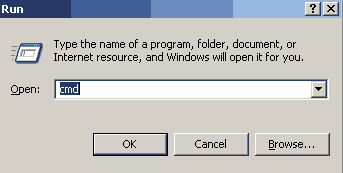
    First click on Start button to open "Run" and type "CMD" (without the quotes) then press Ok button to open Command Prompt.

Now type diskpart on the blinking cursor and wait for 5 seconds to appear diskpart> utility.


To show the list of volume, type list volume command after the diskpart> prompt, this command will show you all system drives detail.

 Now first select the volume that you want to hide, for example,

if you need to hide F drive then first type select volume 2 (in this case) and press enter button
After loading volume, type remove letter F (in this case) to hide F drive


  Now exit from command prompt and open My Computer to verify drives.

But next time, when you want to unhide the D drive, just run assign drive F command after loading volume 2.


Twitter Delicious Facebook Digg Stumbleupon Favorites More

 
Design by Computer Tricks and Tips