Jun 11, 2013

How to increase your system performance?

Window Disk Cleanup is very useful tool to increase the performance of your system. You can increase also the free space on the hard disk, because Disk Cleanup utility searches many unnecessary programs and files on your hard drive that you can delete. This tool perform many useful tasks to cleanup your hard disk. For example 


Delete the temporary internet files
Delete the old windows programs that you are not using.
Delete all temp Downloaded Program files
Delete Office Setup files
Delete Old Chkdsk file
Delete the Recycle Bin items
Delete all Setup log files
Delete the windows temporary files
Delete the Web Client or Publisher Temporary files.
Delete all Catalog file for the content indexer
You can remove the optional windows components that you are not using.

  
To run the Disk cleanup utility follows the given steps:

Click on Start button, Programs, go to Accessories, and go to System Tools and then click on Disk Cleanup.

Now a window popup will appear to select the hard disk partition with option "Select the drive you want to clean up" for example C, D drive, but you can choose partition one by one for scanning.


Now Disk Cleanup will takes some time to access your system then open a window to show "You can use Disk Cleanup to free up to 112,151 of disk space on drive C" (in this case) available after deleting temporary files. On this window a button "View files" is used to check the detail of the files that you are going to delete.

 If you scroll down with in that window, you will get many options to choose, select the all options to clean your system in detail, and then click OK to continue.

On the same window another tab is available with the name "More Options".

 Under the more options tab, there are three clean up buttons to clean "Window Components, Installed Programs and System Restore" , select any one of them and press OK to run it.


How to clear your sensitive information on system shutdown?

During data processing some operating systems use the hard disk as memory, called virtual memory. During processing, operating system transfers some data and programs from RAM to hard disk and reloads again when required. The data or programs are stored in hard disk in temporary file called the swap file. This technique of swapping data between memory and hard disk is called paging. Operating system spends a lot of time in paging process, instead of executing the application software. But the problem is that while working you use different software programs on computer and page file may contain your confidential information or stored in non encrypted format. To reduce this risk, you can set your computer to clear out page file automatically each time you shutdown your computer.
 
Perform the given steps to set your system clear page file automatically:
 
  • To enable this feature, you will need to be logged into your computer with administrative rights.
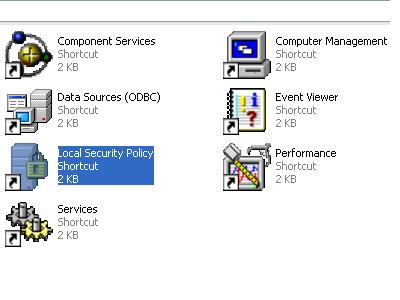
  • First click on start button to open control panel and then click here on "Administrative Tools" option.  
 
Now "Local Security Settings" panel will appear, on lift side of this panel click on "Local Policies". 

Here click on "Security Options" then double click on "Shutdown: Clear virtual memory pagefile" option


    Now small dialog box will appear with options, "Enabled or Disabled" the page file.

    Select the "Enabled" radio button to set clear page file each time you shutdown computer.

Press Apply button to save settings and then click on Ok button to finish.


How to disable/enable the usage of USB storage devices?

 
USB drives (also known as flash drive, mobile disk or pen drive) are becoming the most popular standard in these days to store and move data. USB support is available in PCs of both IBM-compatible and Apple computers. USB port support hot plugging and plug & play. The USB allows up to 127 devices to be connected to the bus via a single port. The driver name "usbstor.sys" is used to communicate any USB drives to the operating system.
 
USB drives are indeed very useful in these days but a user can easily use to transfer any confidential information from your computer to others and can also upload viruses affected files to your computer by accidentally or deliberately. But you can prevent the users to connect any USB drives in the computer by disabling the ability of "usbstor.sys" (USB driver) to load in system. It will block the USB storage devices only and your system USB keyboard, mouse and others USB devices will work properly. 

Perform the following steps to block the USB storage devices: 

To edit this feature, you will need to be logged into your computer with administrative rights. 

First click on Start button to open "Run" and type "regedit" then press Ok button to open the Registry Editor. 


In registry editor locate the given path: 
HKEY_LOCAL_MACHINE\SYSTEM\CurrentControlSet\Services\USBSTOR

Here select the "USBSTOR" folder and in right side of the registry editor panel find the value with name "Start".

Double click on "Start" and then set its value 4 under "Value data" section.

Close the Registry editor and restart your computer for changes to apply.

Now when you want to restore the default setting, open the Registry Editor and set its value back to 3. 

Now again close the Registry editor and restart your computer for changes to apply.


How to configure VLAN on a Cisco Switch?

VLAN stands for virtual LAN and technically we can say, a VLAN is a broadcast domain created by switch. When managing a switch, the management domain is always VLAN 1, the default VLAN. All ports of switch are assigned to VLAN 1 by default.  VLAN increase the performance of a network because it divide a network logically in different parts and limit the broadcasts.
Any member of VLAN 2 can not talk with any member of VLAN 3 without router but all the members of VLAN 2 and VLAN 3 can talk with other members within their VLANs.
This Lab will also help how VLANs can be used to separate traffic and reduce broadcast domains. 
To create a VLAN, first enter global configuration mode to run the following commands.
 Configuration to create VLAN 2 
SwitchA(config)#configure terminal               (enter in global configuration mode) 
SwitchA(config)#vlan 2                                        (defining the vlan 2) 
SwitchA(config)#vlan 2 name marketing       (assigning the name marketing to vlan 2)
SwitchA(config)#exit        (exit from vlan 2) 

Configuration to create VLAN 3 
SwitchA(config)#configure terminal                 (enter in global configuration mode) 
SwitchA(config)#vlan 3                                        (defining the vlan 3) 
SwitchA(config)#vlan 3 name management      (assigning the name management to vlan 3)
SwitchA(config)#exit        (exit from vlan 3)
 Now assigning the ports 2 and 3 to VLAN 2, it must be done from the interface mode. Enter the following commands to add port 2 and 3 to VLAN 2. 
SwitchA(config)#configure terminal                                 (enter in global configuration mode) 
SwitchA(config)#interface fastethernet 0/2                     (select the Ethernet 0 of port 2) 
SwitchA(config-if)#switchport access vlan 2                  (allot the membership of vlan 2)
SwitchA(config-if)#exit                                                        (exit from interface 2)
  
Now adding port 3 to VLAN 2 
SwitchA(config)#interface fastethernet 0/3                     (select the Ethernet 0 of port 3) 
SwitchA(config-if)#switchport access vlan 2                  (allot the membership of vlan 2)
SwitchA(config-if)#exit                                                        (exit from interface 3) 

Now assigning the ports 4 and 5 to VLAN 3, enter the following commands to add port 4 and 5 to VLAN 3. 
SwitchA(config)#configure terminal                                 (enter in global configuration mode) 
SwitchA(config)#interface fastethernet 0/4                     (select the Ethernet 0 of port 4) 
SwitchA(config-if)#switchport access vlan 3                  (allot the membership of vlan 3)
SwitchA(config-if)#exit                                                        (exit from interface 4) 

Now adding port 5 to VLAN 3 
SwitchA(config)#interface fastethernet 0/5                     (select the Ethernet 0 of port 5) 
SwitchA(config-if)#switchport access vlan 3                  (allot the membership of vlan 3)
SwitchA(config-if)#exit                                                        (exit from interface 5) 
To show the VLAN interface information, run the command show vlan.

Twitter Delicious Facebook Digg Stumbleupon Favorites More

 
Design by Computer Tricks and Tips